A calendar feed is a private web address for your timetable. Your calendar app reads it and shows your lessons next to your other plans. The feed is read-only. Changes you make in your calendar app stay in that app.
The app calls this an iCal feed. iCal is the standard format that calendar apps read. Each feed has its own token: the private code at the end of the web address.
Calendar feeds are part of the Professional plan. On the free plan, the page shows “Calendar feeds aren’t available on your current plan” and an Upgrade plan button. See How to change your plan.
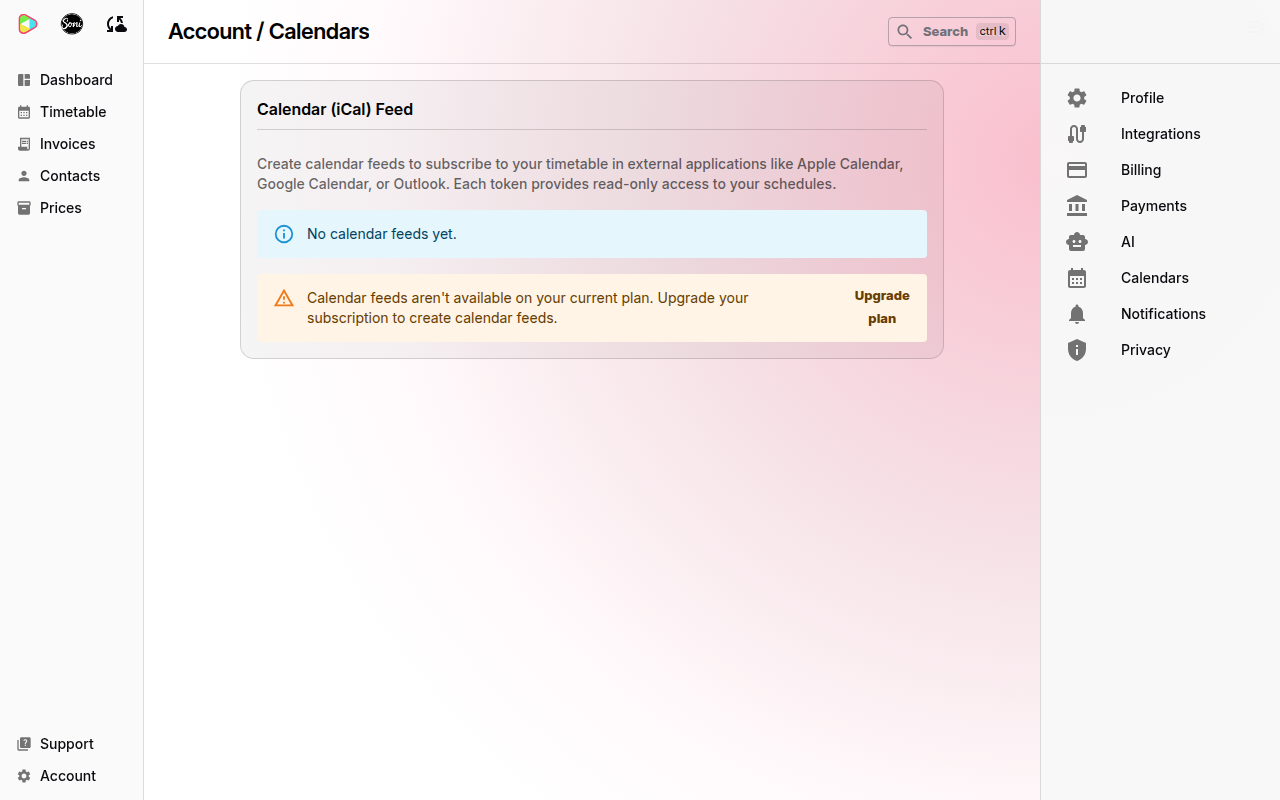
Create a calendar feed
- Select Account at the bottom of the sidebar.
- Select Calendars.
- In Calendar (iCal) Feed, select Create New Feed.
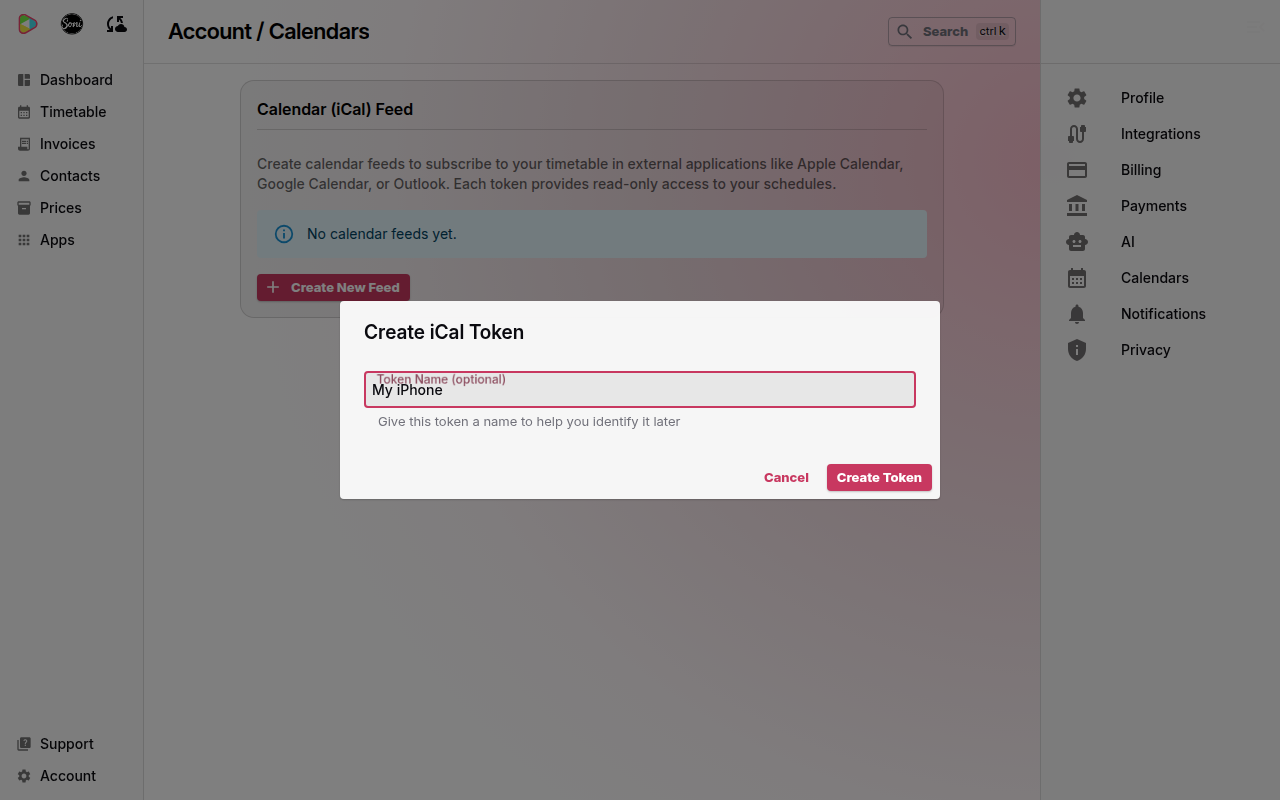
- Enter a name in Token Name (optional), for example “My iPhone”. The name helps you tell your feeds apart.
- Select Create Token.
The new feed appears with its web address. Select the copy icon (Copy feed URL) next to the address. Soniq Studio shows “Feed URL copied to clipboard”.
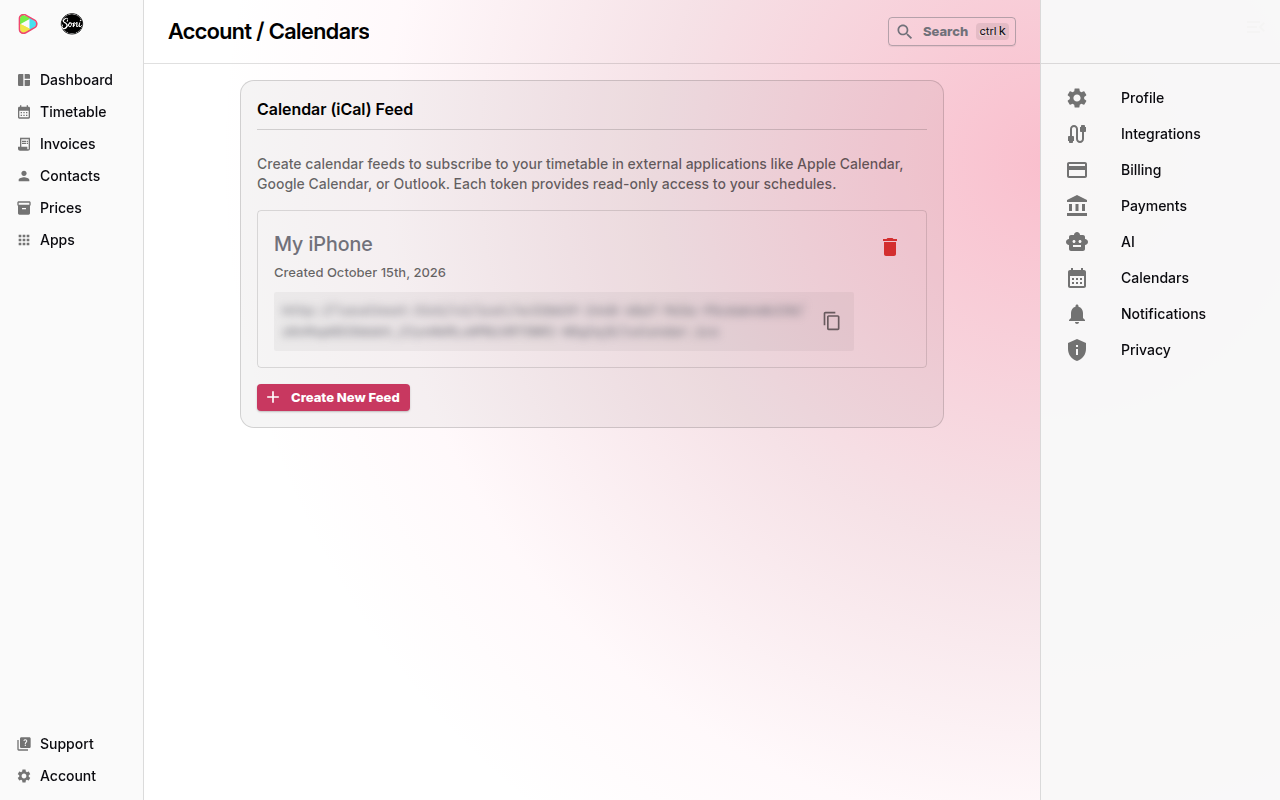
Keep this address private. Anyone with the address can see your lesson times and your students’ names.
Add the feed to your calendar app
Paste the address into your calendar app as a subscription. The menu names below come from each app and can change.
- Google Calendar (on a computer): next to Other calendars, select +, then From URL. Paste the address and select Add calendar.
- Apple Calendar (on a Mac): choose File, then New Calendar Subscription. Paste the address and select Subscribe.
- Outlook (on the web): select Add calendar, then Subscribe from web. Paste the address and select Import.
Your lessons appear in the app. Your calendar app decides how often it checks for changes, so a moved lesson can take some time to show.
Stop a calendar feed
Stop a feed when you change phone, or if you shared the address by mistake.
- Go to Account, then Calendars.
- Select the bin icon (Revoke token) on the feed.
- Select Revoke Token.
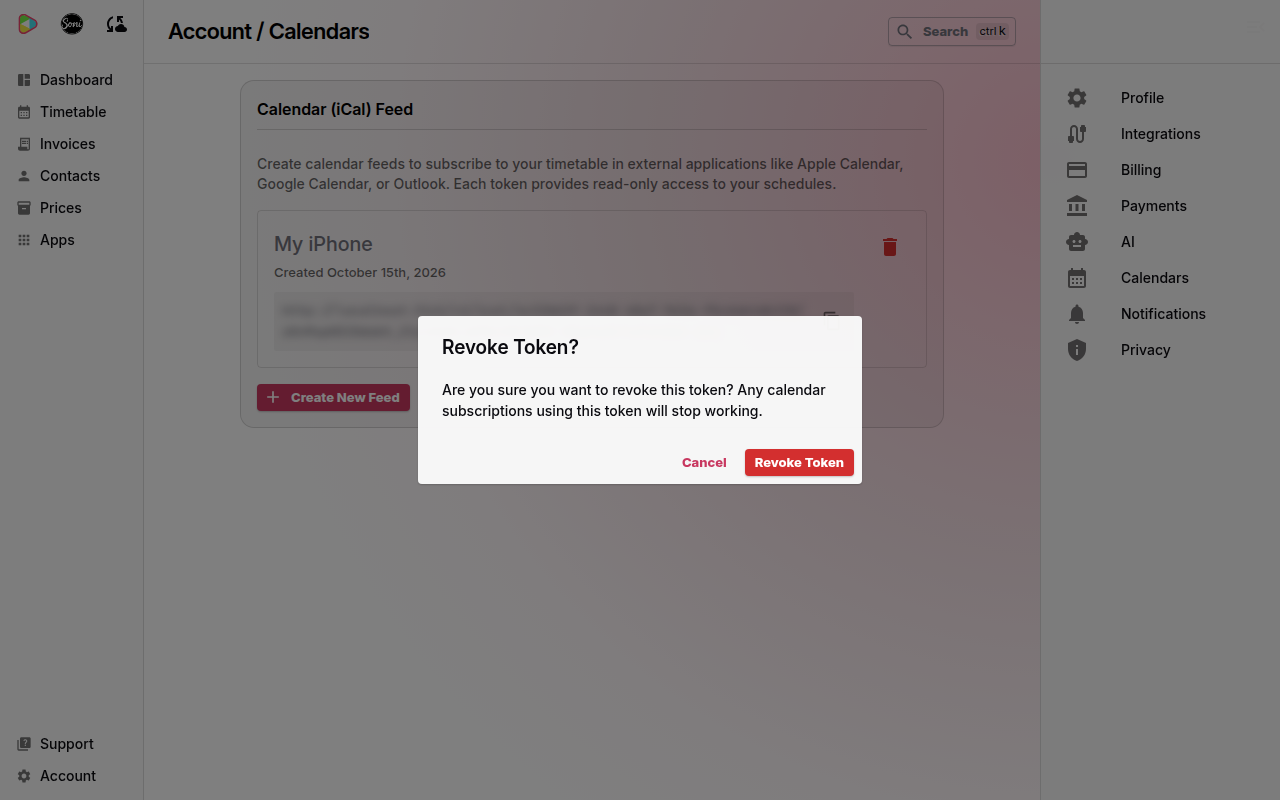
Calendar apps using that address stop receiving your lessons. To connect again, create a new feed.
Related
- Calendar feed lists what the feed contains and how it updates.
- To share your timetable with families, see How to share your timetable.