
Soniq Studio can draft a timetable from your students’ lesson history. It looks at when each student usually has lessons and suggests the same kind of time next term.
This is an early-access feature for founding members, and it is still changing. The suggestions are a starting point. Always check them before you copy them into your timetable. If you do not see AI in your account menu, the feature is not turned on for your account.
Refresh the suggestions
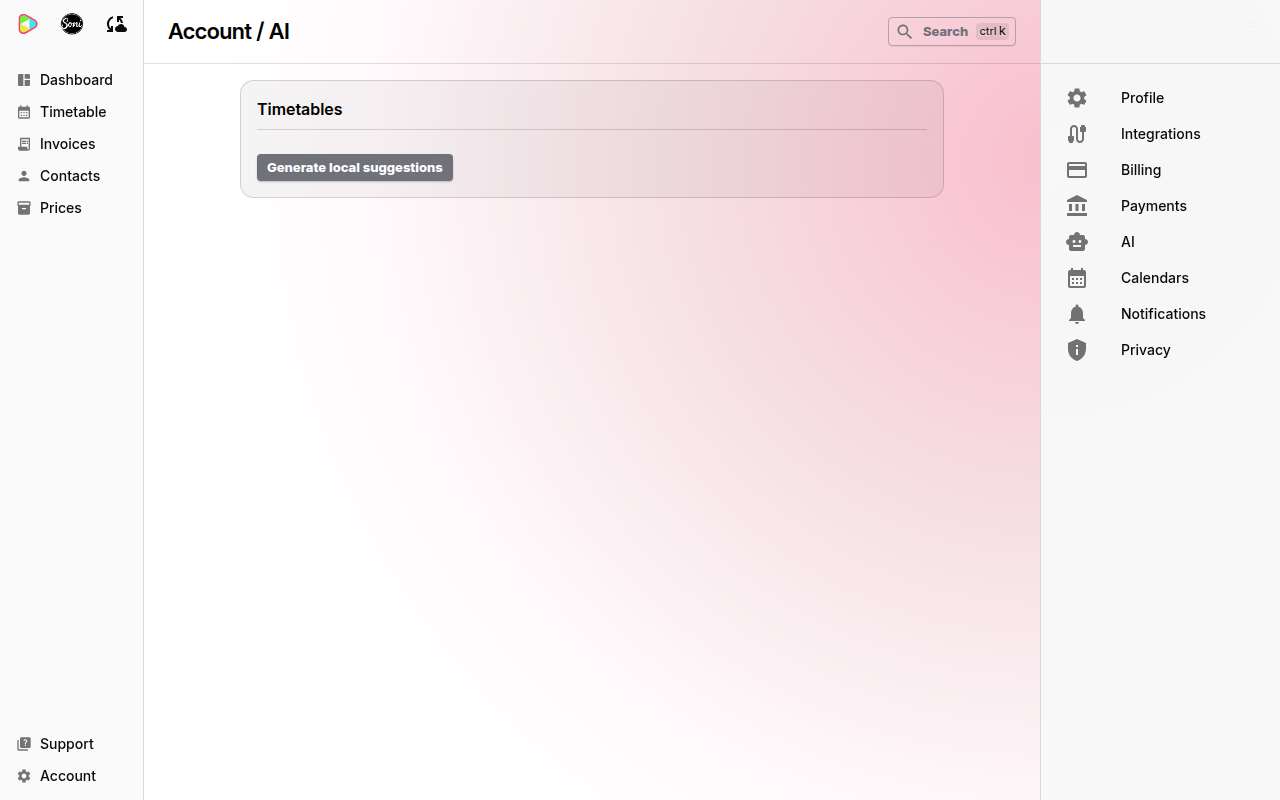
Soniq Studio refreshes the suggestions when you use the timetable generator. To refresh them yourself, for example after you add many past lessons:
- Select Account at the bottom of the sidebar.
- Select AI.
- In Timetables, select Generate local suggestions.
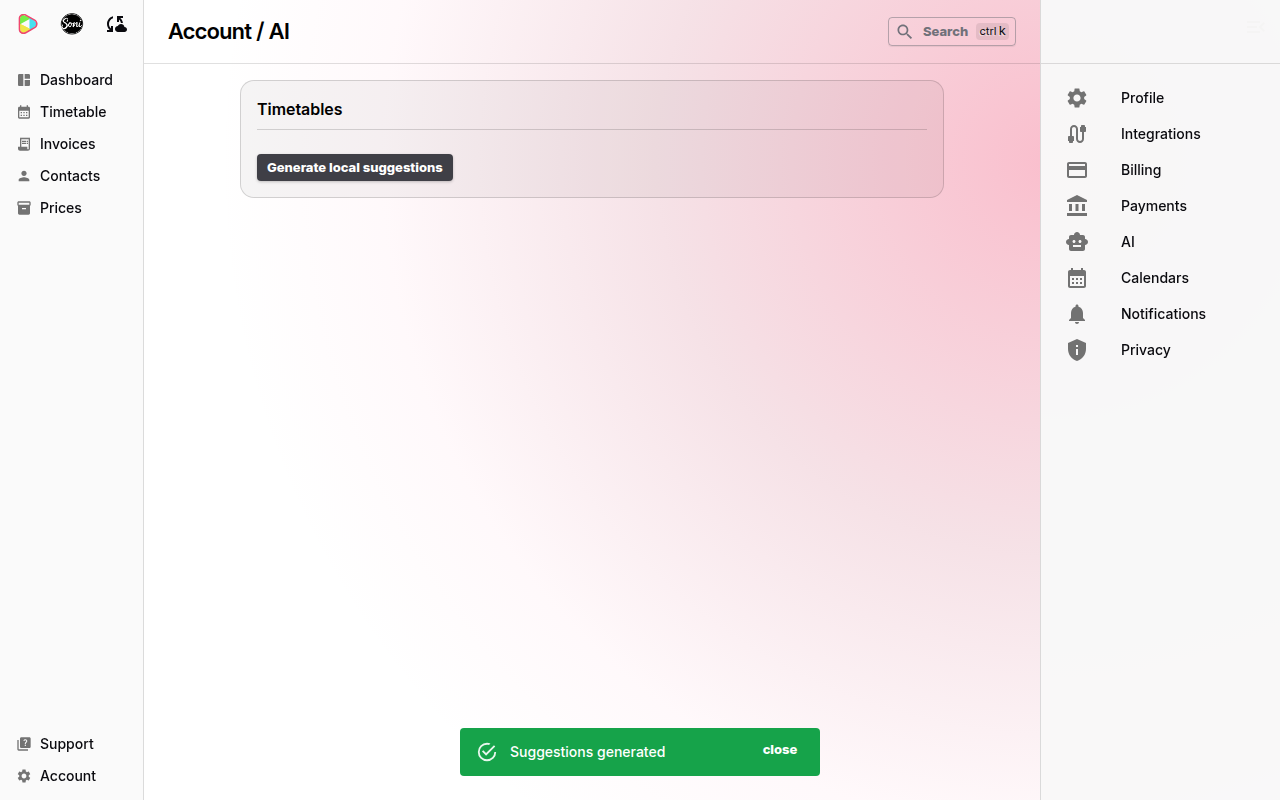
Soniq Studio shows “Suggestions generated”.
Draft next term’s timetable
- Select Timetable in the sidebar.
- In the Generate Timetable panel, select Timetable generator.
- Follow the steps in How to generate a term timetable.
On the Review suggestions step, the Match column shows how well each time fits the student’s history. Soniq Studio compares the matched students with each other, in thirds:
- Strong match: the best third of the fits.
- Possible match: the middle third.
- Weak match: the lowest third.
- Free slot: Soniq Studio could not match the student, so it used a free time slot.
Check every Weak match and Free slot with the family before you copy the suggestions into your timetable.
Related
- Why timetables are forgiving explains why suggestions stay on their own calendar until you copy them.
- The road ahead explains how founding members help shape new features.