
Use this guide to turn your lessons into invoices and send them. You need to be set up for payments first. If you are not, see Get paid.
For what each field and status means, see Invoice fields and statuses.
Create invoices
- Select Invoices in the sidebar.
- Select Create Invoices in the Actions panel.
- Set the Dates to cover the lessons you want to invoice.
- Enter the Days until invoices are due. Enter 0 for due on receipt.
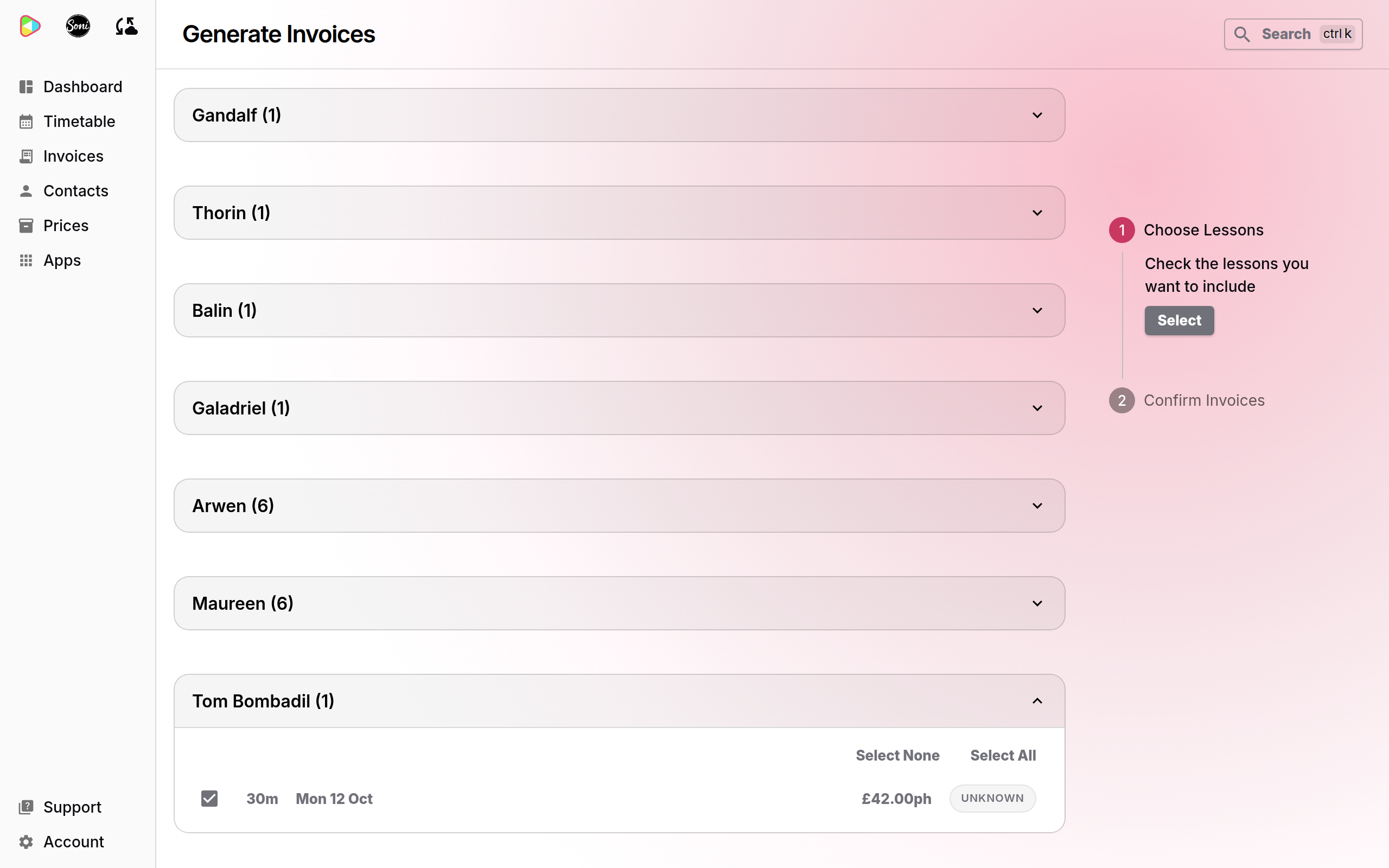
- Open each student’s name and tick the lessons to include. Use Select All or Select None to tick a whole student at once.
- Select Select.
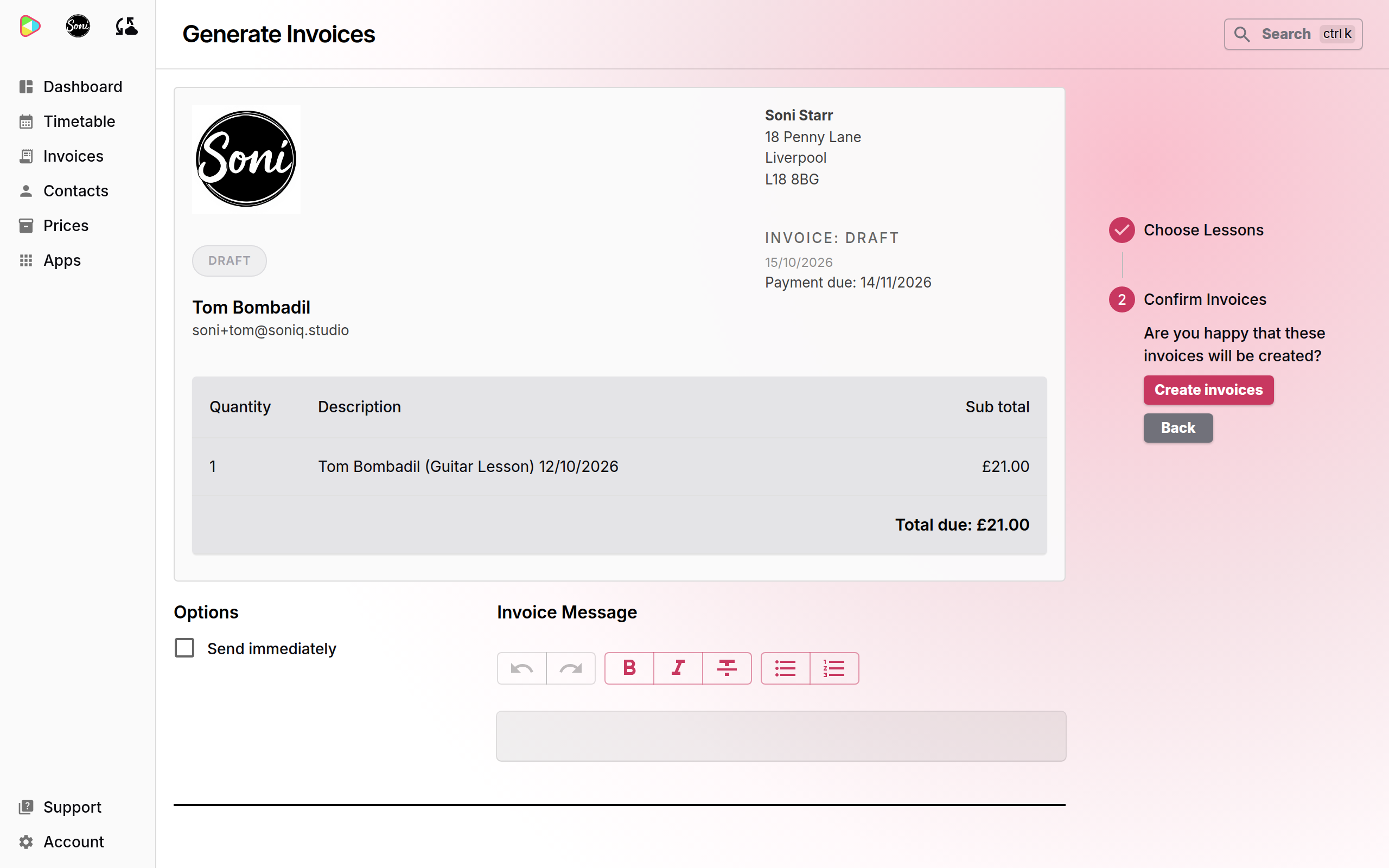
- Check the preview of each invoice.
- Optional: write an Invoice Message. It goes out with the invoice email.
- Optional: tick Send immediately to send the invoices now.
- Select Create invoices.
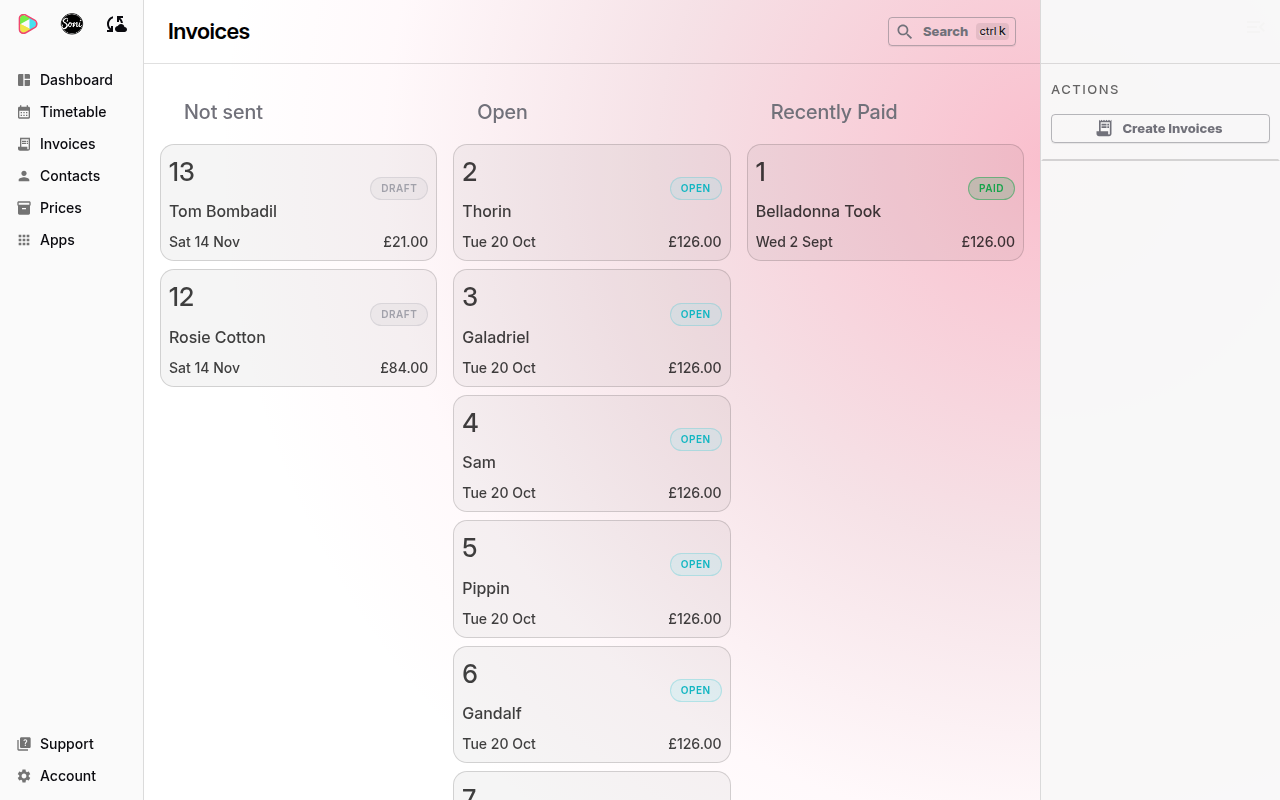
Soniq Studio creates the invoices. If you did not tick Send immediately, the invoices wait in the Not sent column as drafts.
Send a draft invoice
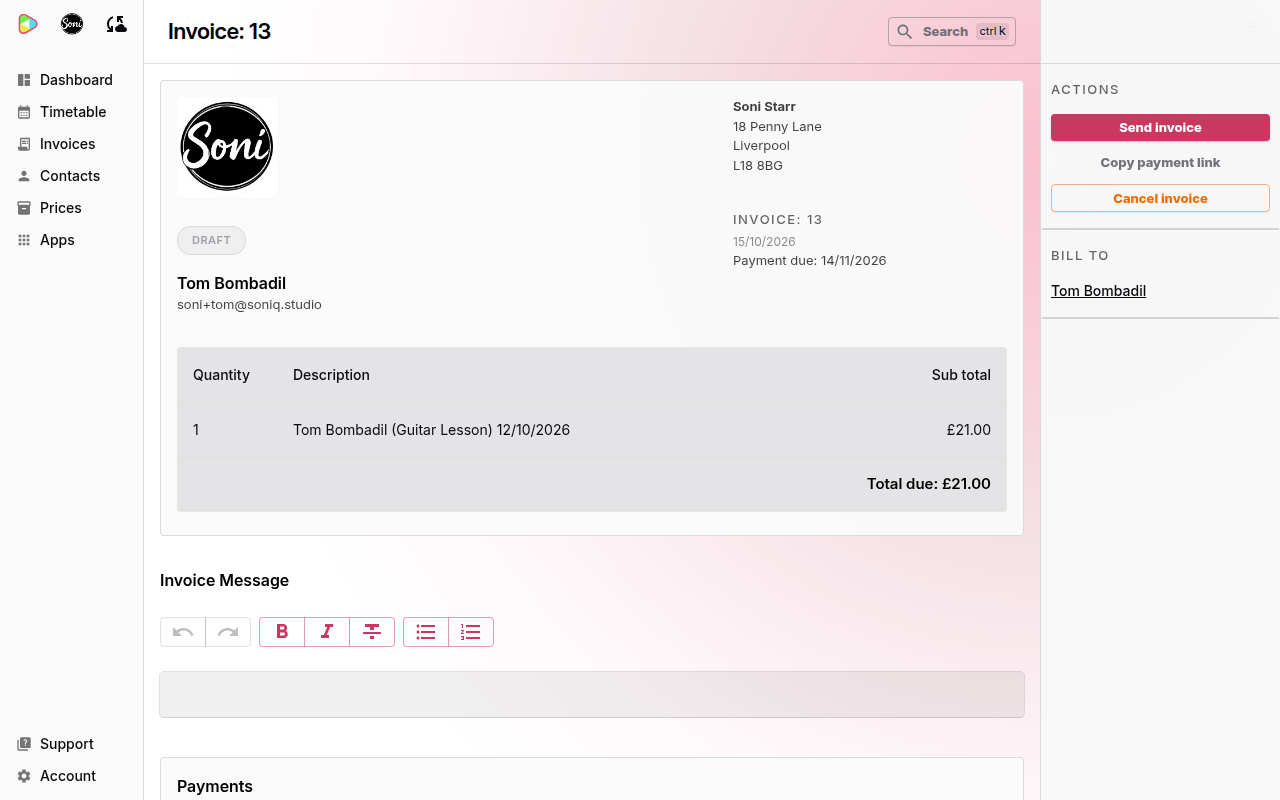
- Select the invoice in the Not sent column.
- Check the lines and the total.
- Optional: write or change the Invoice Message.
- Select Send invoice.
The status changes to Open. The invoice moves to the Open column. The person who pays gets an email with the invoice as a PDF and a Pay now button.
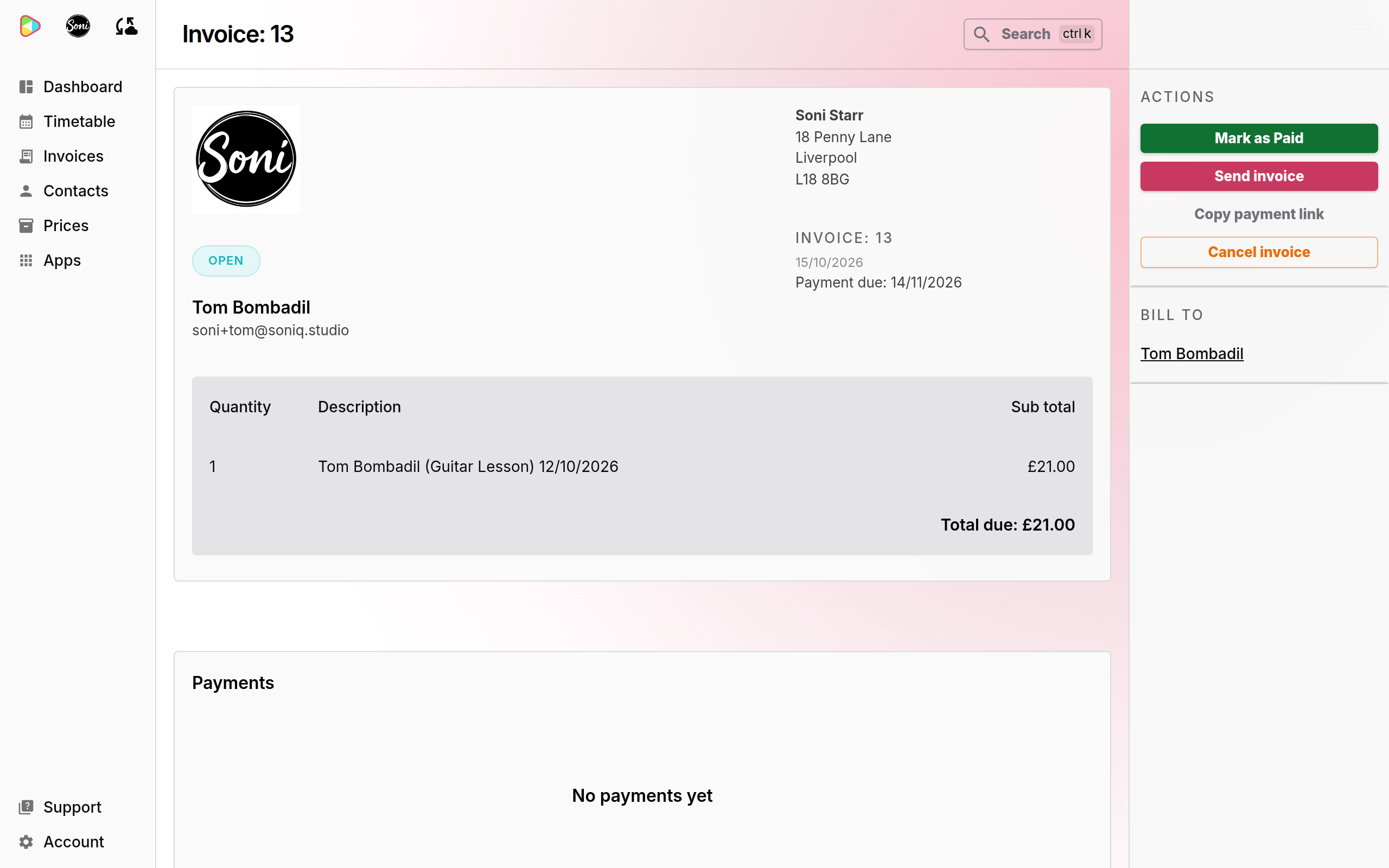
Follow the invoice
Open the invoice and scroll down.
- The Payments card shows each payment and its status.
- The Activity card shows each email, status change, reminder and payment step.
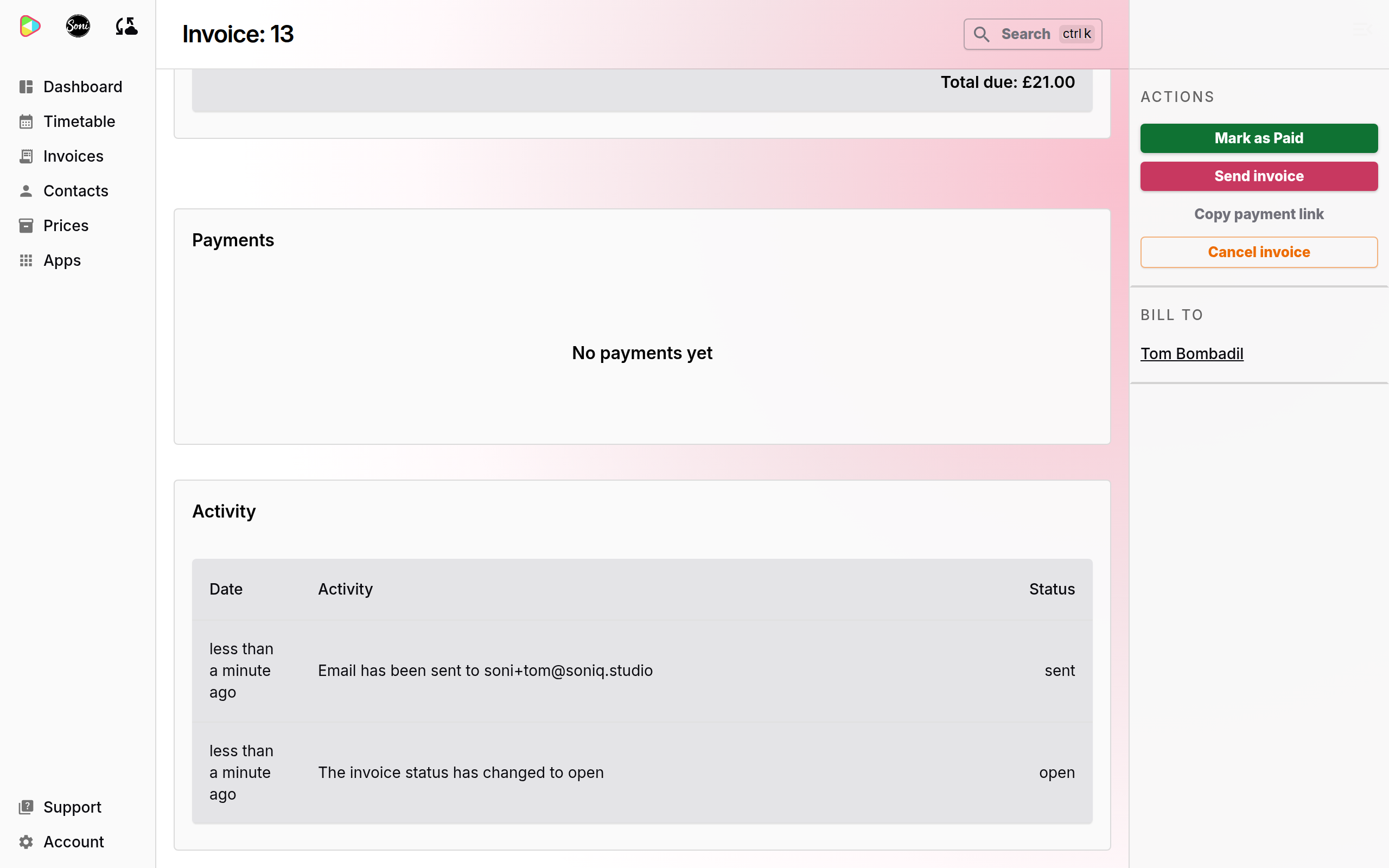
When the payment is collected, the status changes to Paid. The invoice moves to Recently Paid.
An open invoice past its due date shows Overdue. On the Professional plan, invoice auto-reminders then go out for you. See Subscription plans and fees. See How to handle a failed or missed payment.
Send an invoice again
- Open the invoice in the Open column.
- Select Send invoice.
Soniq Studio sends the same invoice email again.
Record a payment you received another way
Use this when a student pays you by bank transfer, cash or another way outside Soniq Studio.
- Open the invoice in the Open column.
- Select Mark as Paid.
- Optional: enter Notes (optional), for example the bank transfer reference.
- Select Record Payment.
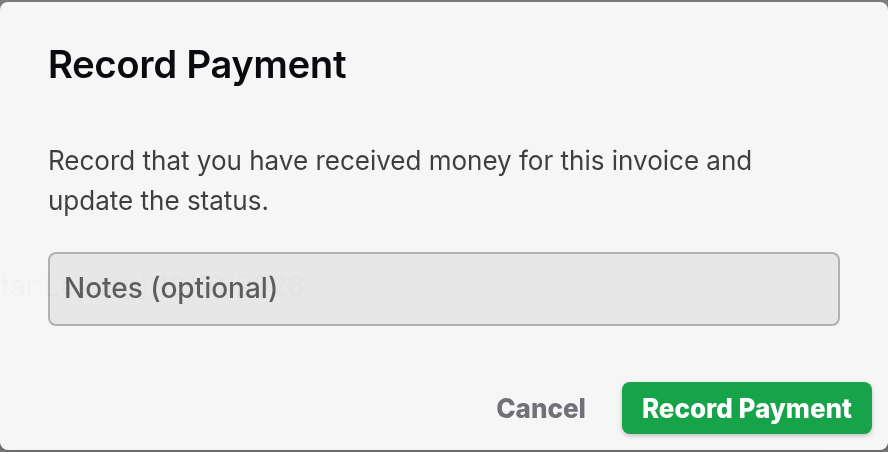
The status changes to Paid.
Cancel an invoice
- Open the invoice.
- Select Cancel invoice.
- Select Cancel Invoice to confirm.
A draft becomes Cancelled. An open invoice becomes Written Off, and the person who pays gets an email that tells them. You cannot undo this.