
Soniq Studio puts your billing name, billing address and logo at the top of every invoice. You set all three in Account.
Soniq Studio does not have tax settings yet. An invoice cannot show a VAT number, a company number or a tax line. Invoices show the lesson amounts and the total only.
Before you start
- Decide what name you trade under. This can be your own name or a business name.
- If you are not sure whether VAT applies to you, read Register for VAT on GOV.UK or speak to your accountant. Soniq Studio does not give tax advice.
Set your billing name and address
- Select Account in the sidebar.
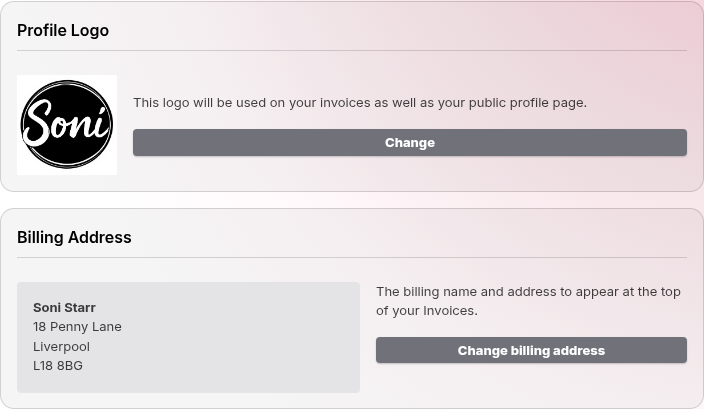
- Find the Billing Address card on the Profile page.
- Select Change billing address.
- Enter the Name you want on your invoices.
- Enter Address 1, Address 2, City and Postcode.
- Select Save.
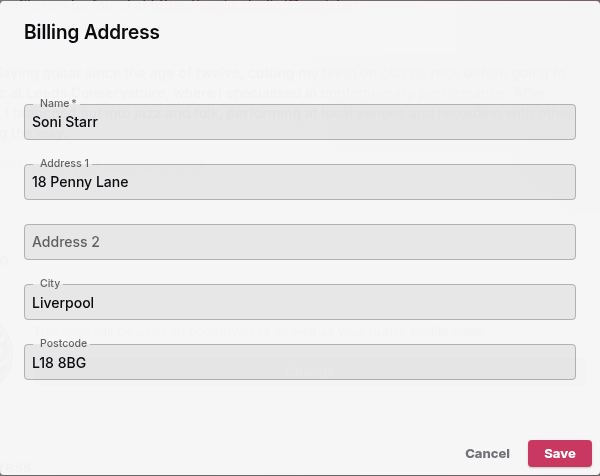
New invoices use the new name and address. Each invoice keeps the name and address it was created with, so invoices you already created do not change.
Add your logo
- Select Account in the sidebar.
- Find the Profile Logo card.
- Select Change and choose your logo image.
Your logo appears on your invoices and on your public profile page.
If you need a VAT number on your invoices
Soniq Studio cannot add a VAT number, a company number or VAT amounts to an invoice yet. If you are VAT-registered, ask your accountant how to issue your VAT invoices in the meantime. The GOV.UK link above describes UK rules. Teachers in EU countries follow their own country’s rules.
Soni Starr is a sole trader who is not VAT-registered. Their invoices show their name, their address, their logo and the lesson amounts.