In this tutorial, we give a family their own page in Soniq Studio. By the end, you will open that page yourself and see exactly what the family sees: their upcoming lessons, their invoices and their Direct Debit status.
We follow Soni Starr. Soni has a new student, Ringo, who has a guitar lesson every Friday at 8:00. Ringo’s mum, Maureen, pays for the lessons. Maureen keeps asking when the next lesson is, so Soni wants to give her a page she can check herself.
The family does not need an account or a password. They open the page with a private link. To read why we chose links over accounts, see Why students get a portal, not an account.
Before you start
You need:
- a student with at least one lesson on your timetable
- a parent or carer linked to the student, with Send invoices to this contact ticked, and an email address
Soni set this up in How to add a student and link a parent or guardian. A student who pays for their own lessons also works, if they have an email address.
The contact portal is available to founding members with early features turned on. If you do not see a Contact portal section on a contact’s page, it is not switched on for your account yet.
Step 1: Open the student’s page
Select Contacts in the sidebar, then select the student. Soni selects Ringo.
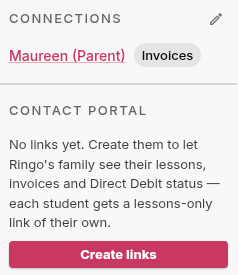
Look at the right-hand side of the page. The Connections section shows Maureen with an Invoices label. Below it is the Contact portal section. It says “No links yet”.
Step 2: Create the links
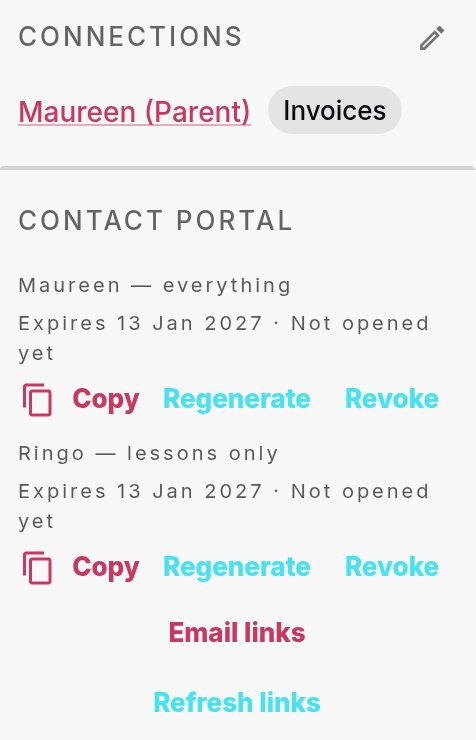
Select Create links. A green “Links created” notice appears.
The section now lists two links, one for each person in the family:
- Maureen — everything: Maureen pays, so her link shows lessons, invoices and Direct Debit status.
- Ringo — lessons only: Ringo’s link shows his lessons and nothing about money.
Each link shows the date it expires and whether anyone has opened it. Links last 90 days. Soni’s links say Not opened yet.
Step 3: Email the links to the family
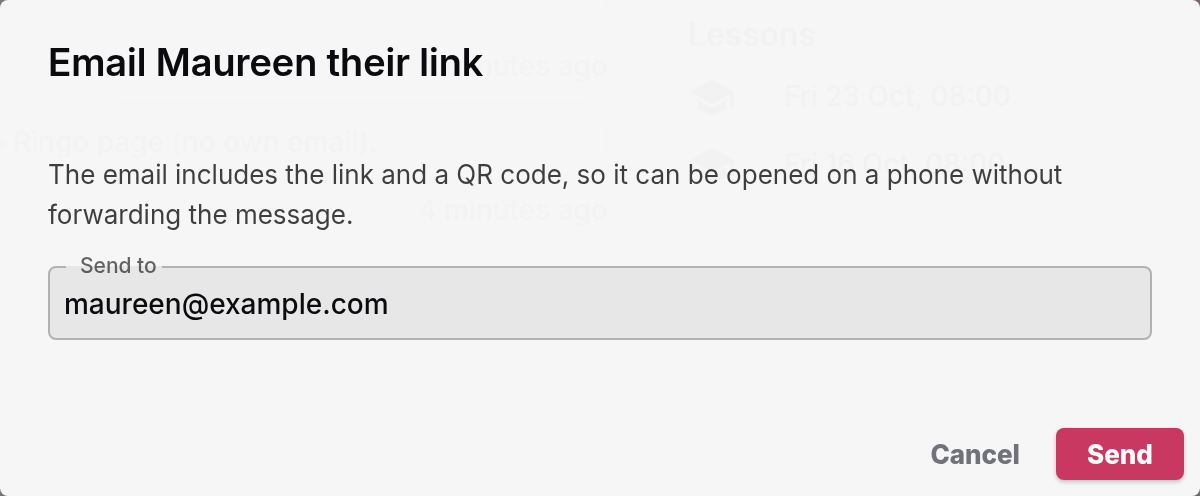
Select Email links. A dialog opens, called “Email Maureen their link”.
The Send to box already holds Maureen’s email address. Select Send. A “Links sent” notice appears.
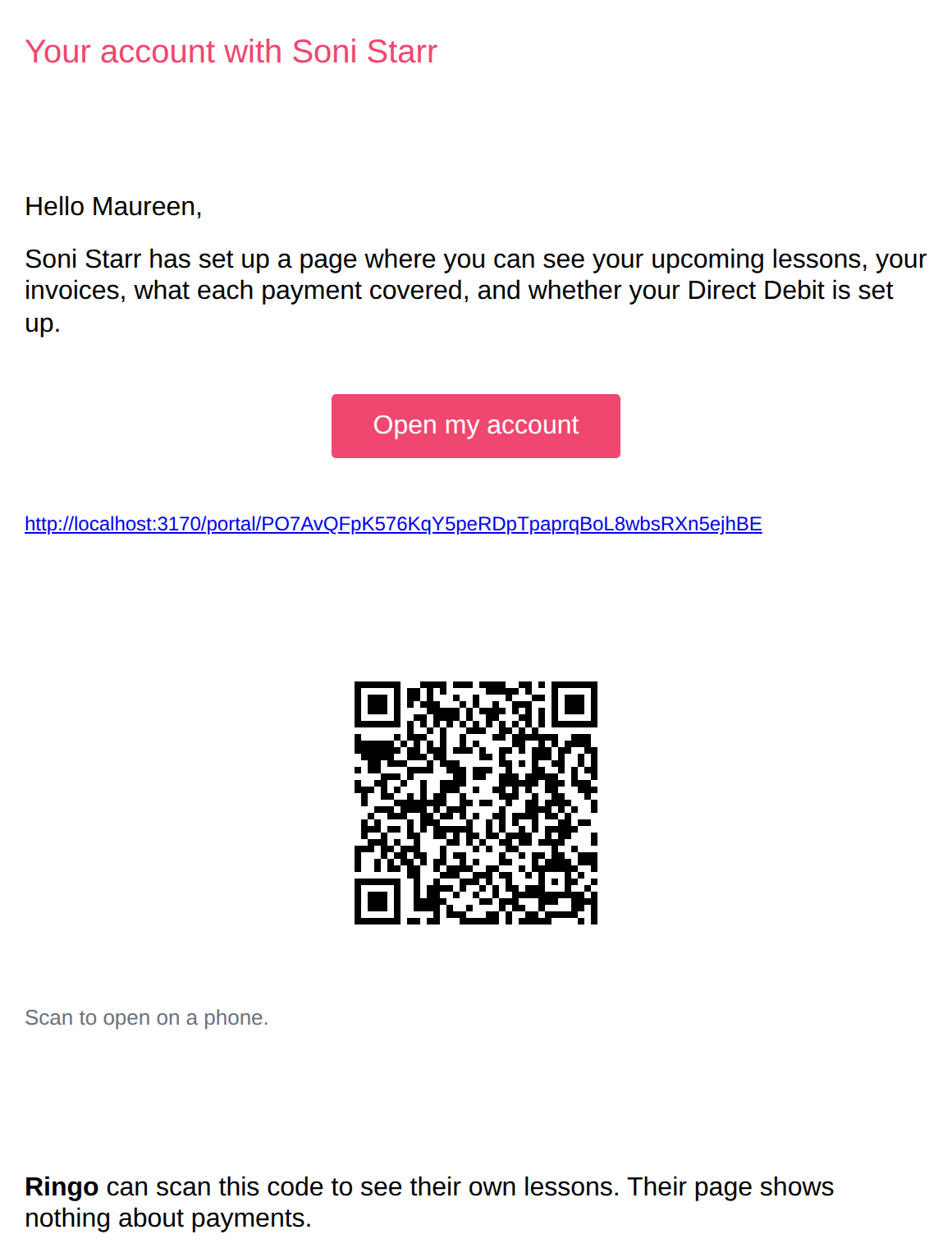
Maureen receives an email called “Your account with Soni Starr”. It has an Open my account button, her link, and a QR code to scan with a phone. Further down, it has a QR code and a link for Ringo’s own lessons page.
Step 4: See what Maureen sees
Now we open Maureen’s page. Select Copy next to Maureen — everything. Open a private browser window, so you are not signed in, and paste the link.
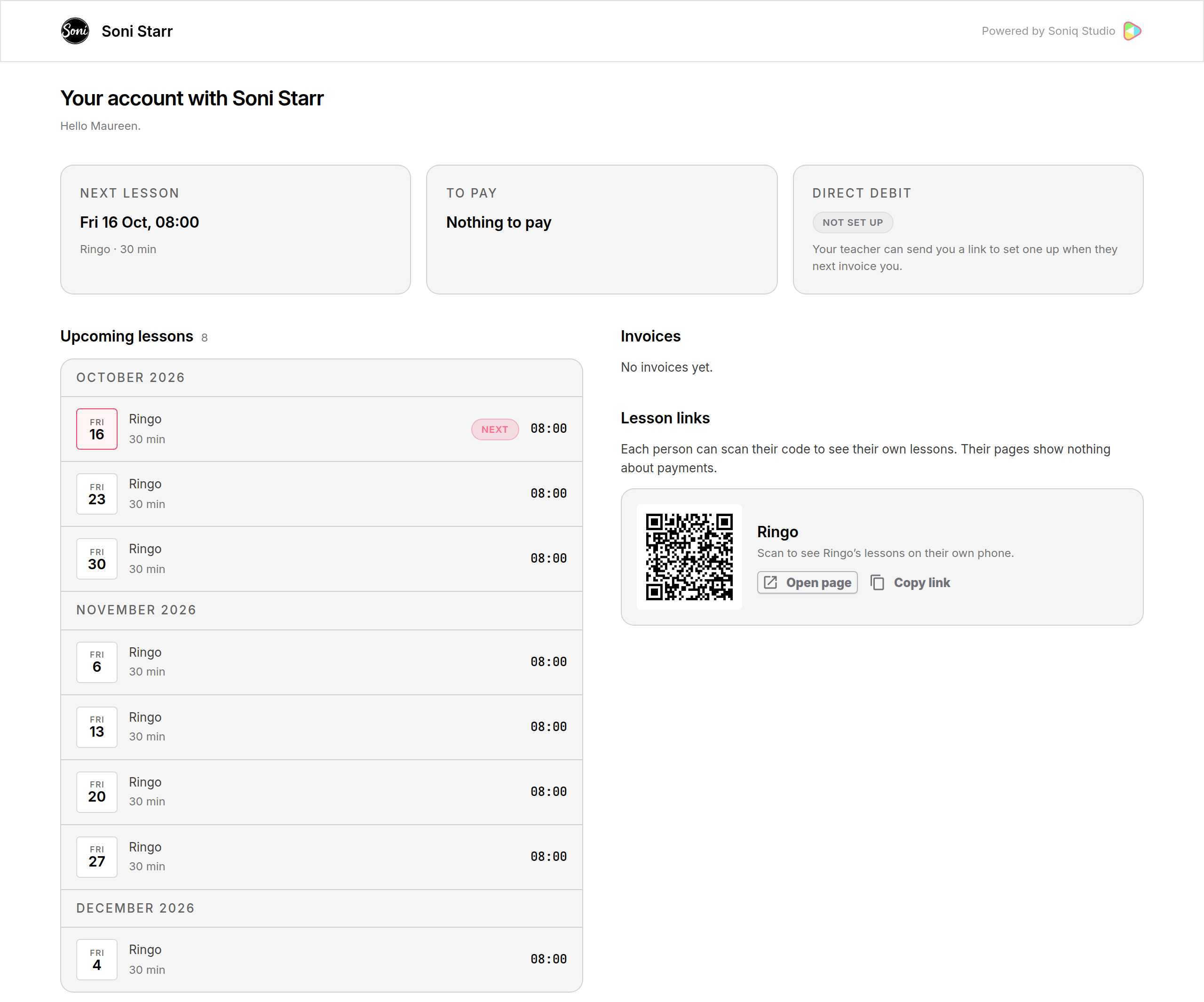
The page opens with “Your account with Soni Starr” and “Hello Maureen”. Three cards sit across the top:
- Next lesson shows Ringo’s lesson on Friday at 8:00.
- To pay shows “Nothing to pay”, because Soni has not sent an invoice yet.
- Direct Debit shows Not set up.
Below, Upcoming lessons lists Ringo’s lessons for the next eight weeks, grouped by month. The first one has a Next label. Invoices says “No invoices yet”. Lesson links shows Ringo’s QR code, so Maureen can pass it on to him.
When Soni sends Maureen an invoice, it appears here. Maureen can open it, see what it covered, and pay it.
Step 5: See what Ringo sees
Go back to Ringo’s page in Soniq Studio. Select Copy next to Ringo — lessons only, and paste it into the private window.
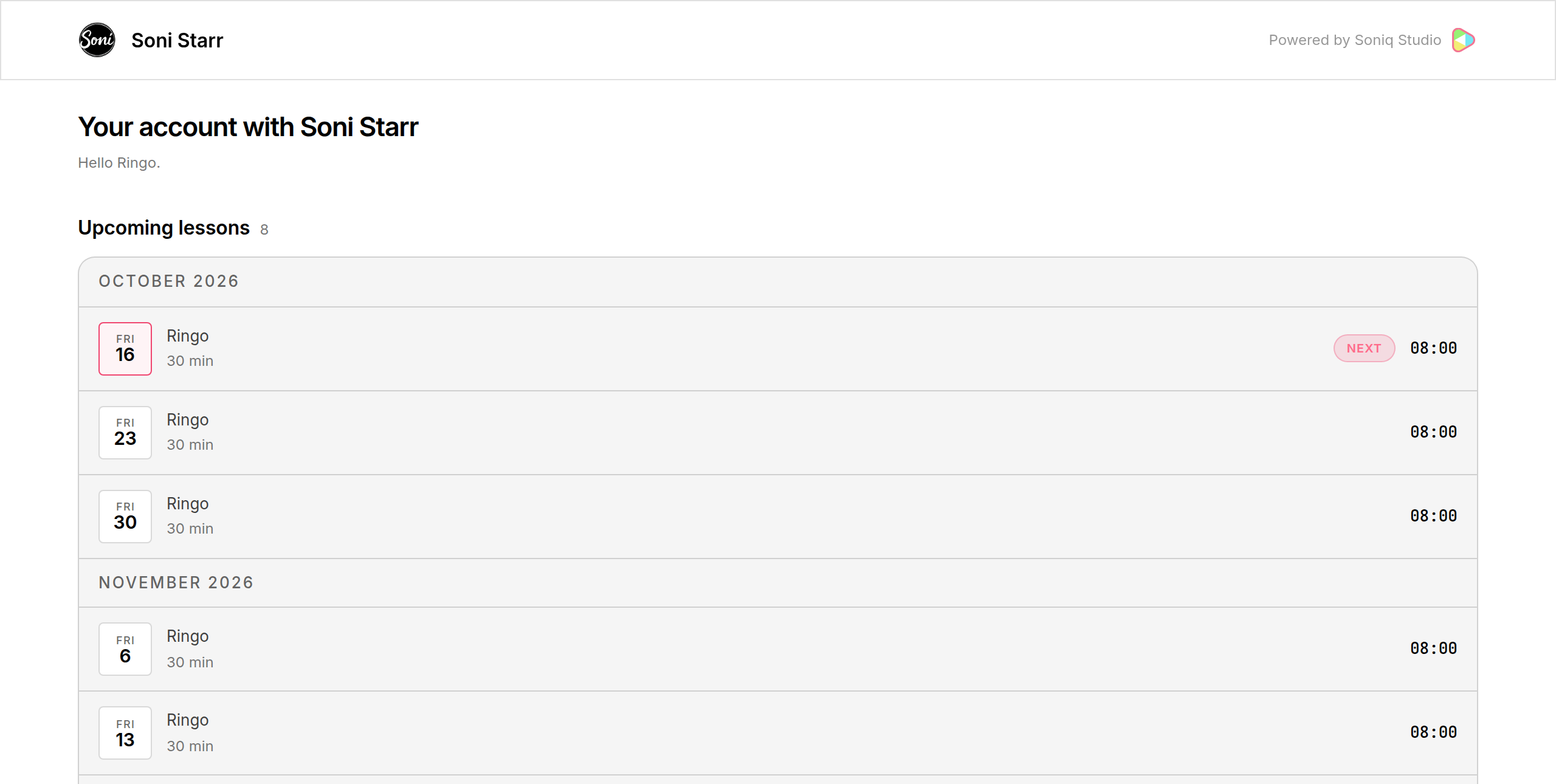
Ringo’s page says “Hello Ringo.” and shows only Upcoming lessons. It has no invoices, no amounts and no bank details.
Go back to Ringo’s page in Soniq Studio once more. Both links now say Last opened with today’s date.
What you have done
You gave a family two private pages. Maureen can check the next lesson and her invoices without messaging you. Ringo can check his own lessons, and he never sees what his lessons cost.
The family can look but cannot change anything. Cancellations and changes still come through you.
Next steps
- How to see what your students see in the contact portal covers each part of the page, and how to replace or switch off a link.
- Get paid: from timetable to first collected payment takes you from a timetable to money in your bank account.